Sharing feedback
`💡 How to rate Point Alerts and more, share detailed feedback, and reach Support, so every signal you send helps sharpen what Vantage surfaces next.
💬 Your feedback is the single most important input we have for calibrating your alerts. Every thumbs up, thumbs downthumbs down, and comment you leave feeds directly back into the platform: it helps our team tune the analysis and prioritise the alerts and reports that matter most to you. The more you rate and comment, the more relevant and accurate the alerts become over time. This guide covers where to give feedback inside the portal, how to give it straight from your alert emails, and how to reach Support.
▲ Giving feedback in the portal
- On alerts
Use this flow any time you review an alert and want to flag whether it was useful.
1. Open the Alerts view at portal.letsdata.net/alerts.
2. Open the alert you want to rate and scroll to the bottom of it.
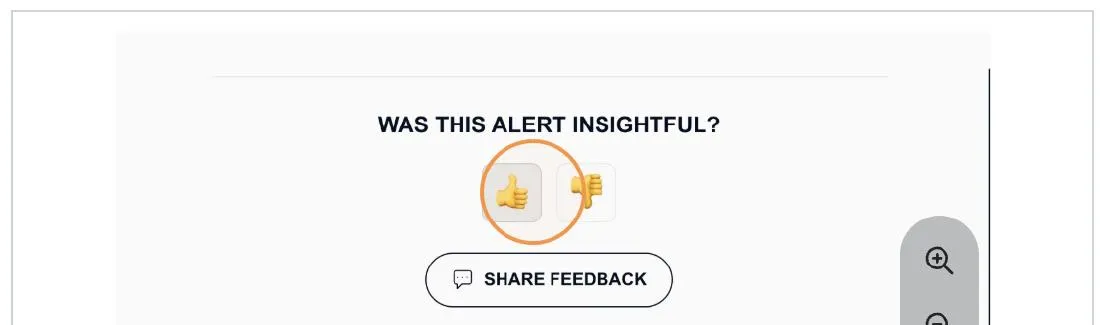
3. Click the thumbs-up if the alert was insightful, or the thumbs-down if it was not.
4. Click Share Feedback if you would like to add more detail than a rating.
- Adding detail with the feedback form
Clicking Share Feedback opens a short form with a few options:
What type of feedback do you have? Choose from Report a technical issue, Share product feedback, Request feature access, Request ad hoc report, or Something else.
Your feedback (required): Describe what you are flagging or asking for.
Attachments (optional): Drag and drop files, or click to upload supporting material.
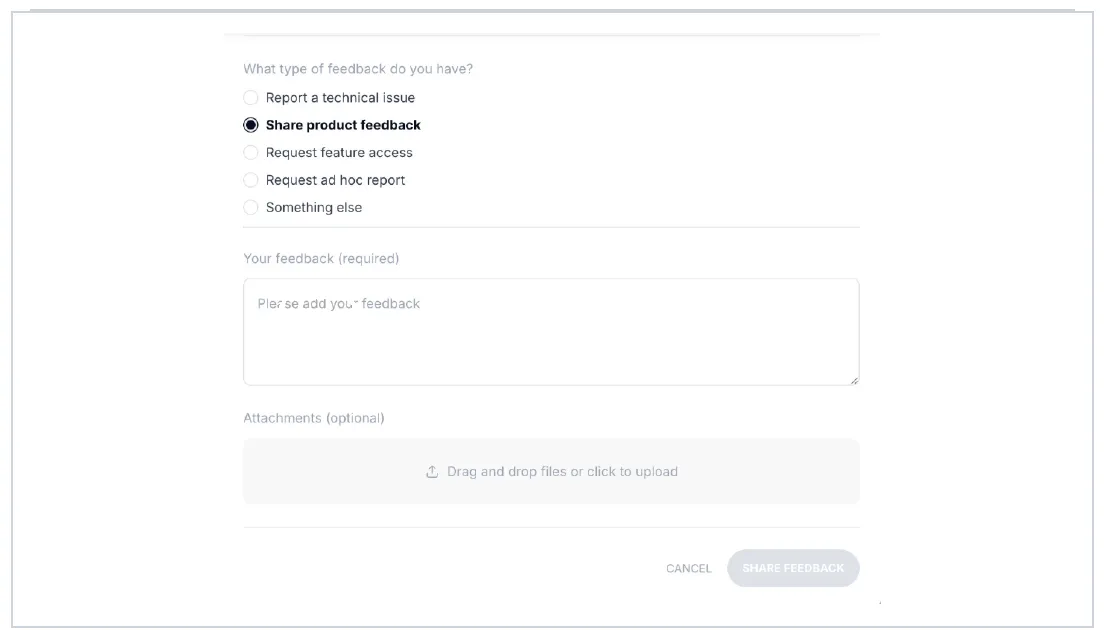
The detailed feedback form, opened from any alert or report.
- On Ask Ember reports
Ask Ember reports use the same two-tier feedback: a quick rating, or a detailed note if something needs follow-up.
1. Open Ask Ember and generate your report.
2. Scroll to the bottom of the report.
3. Click the thumbs-up if the report was helpful, or the thumbs-down if it was not.
✉️ Giving feedback from your alert emails
- Rate the alert
The Insightful alert and Not Insightful buttons sit at the top of every alert email. A single click records whether the alert was useful to you.

- Add a comment or flag an issue
To leave a comment, make a request, or signal that something is wrong or not working, use the Share your feedback link near the bottom of the alert. It opens the same feedback form as in the portal, already linked to that specific alert.
🛟 Getting more help
For anything outside a specific alert or report, whether general questions, technical issues, or product feedback, go straight to Support.
1. Click Support in the bottom-left corner of the portal. It is available from any screen, at any time.
2. Or email [email protected], and we will route your request to the right person.