How to Searching Through Alerts
💡 How to pull up anything in your alert archive by keyword, time period, and theme.
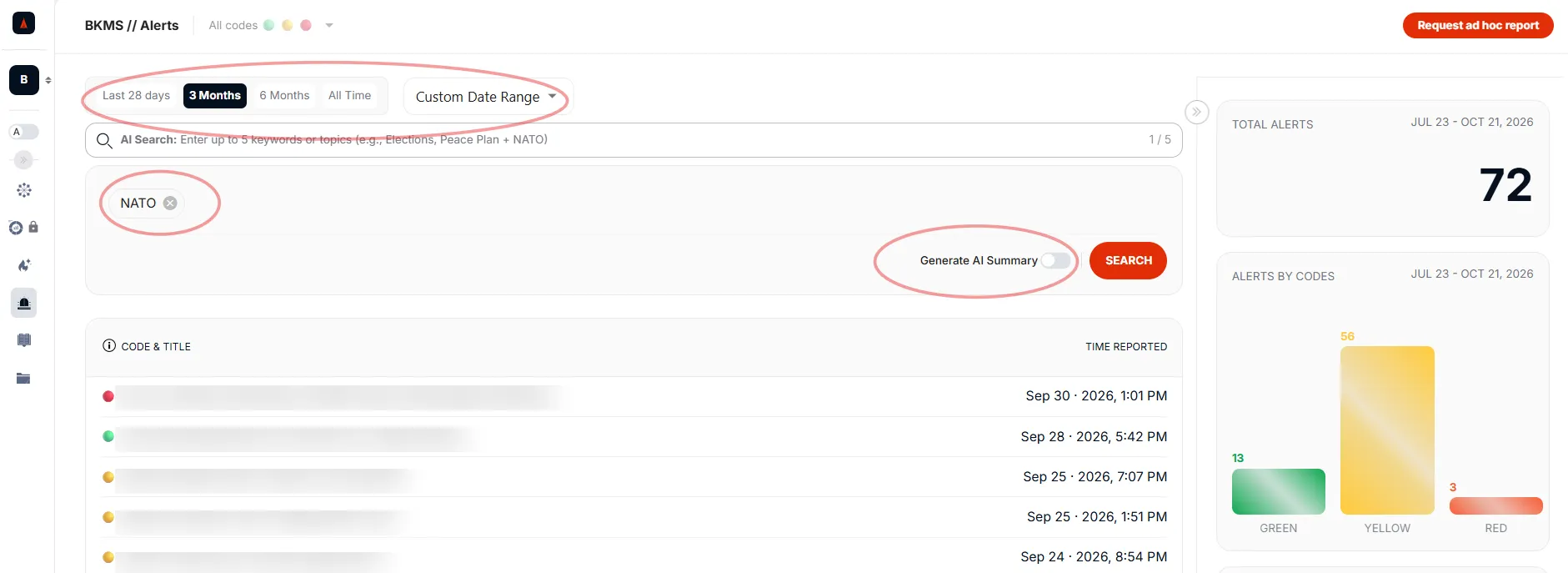
The Alert Search page is where you move through every alert published to your portal under this subscription. You can look up alerts on a specific topic, zoom in on a time window, or generate an AI summary across a set of results. This guide walks through the search controls and two typical ways to use them.
Running a search
1. Open the Alerts view at portal.letsdata.net/alerts.
2. Pick a time period: one of the presets (Last 28 days, 3 Months, 6 Months, All Time) or set a Custom Date Range.
3. Enter one or two keywords or topics in the search bar.
4. Optional: toggle Generate AI Summary on to receive an auto-generated summary report alongside the matching alerts.
5. Click SEARCH.
How to use it
1. Targeted lookup Search by a keyword to find alerts on a specific topic, or apply a filter such as the All codes dropdown at the top of the page to pull up every alert of a given severity, for example, all red alerts.
2. Thematic deep dive Run a broader theme (for example, mobilisation, energy, or the EU) over a longer period and turn on Generate AI Summary. The summary pulls out the narratives being promoted, which platforms carried them, and the types of sources behind them, so you do not have to read every matched alert to see the pattern.
Have a question? Our team is ready to help via the Support form.
Last Updated: 30 October, 2026